Web Design, eCommerce, Hosting and SEO

Change Nameservers at NetworkSolutions

by Editor | Mar 7, 2023 | Tech Support | 0 comments

Follow the below steps when you are ready to change or modify the nameservers.

  1. Log in to the Account Manager.
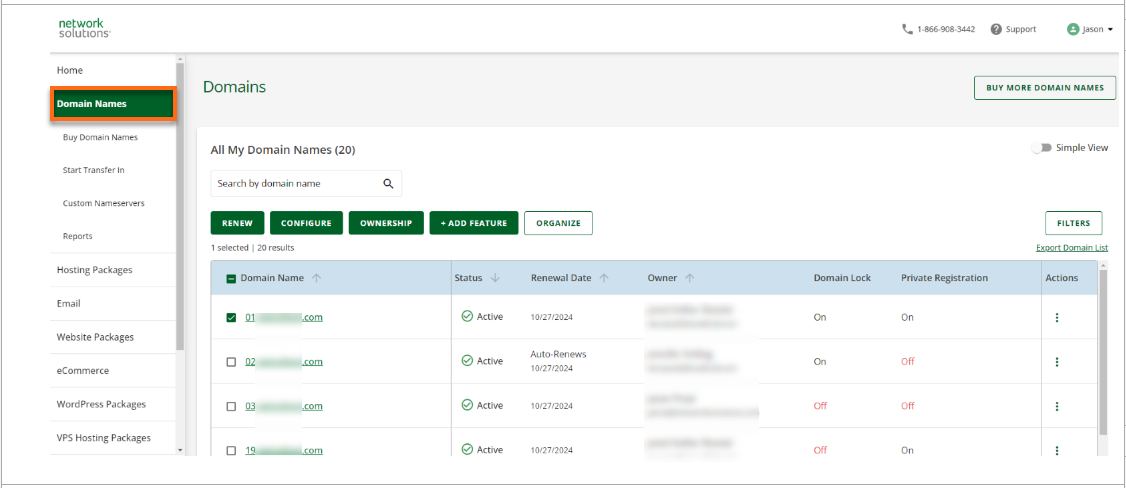
  2. Select Domains on the left side of the page.
Image of Left Menu in the Account Manager
  1. Select the domain name you want to change. If you only have one domain, you will be taken directly to the Domain Details page.
  2. On the domain page, go down to the Advanced Tools section.
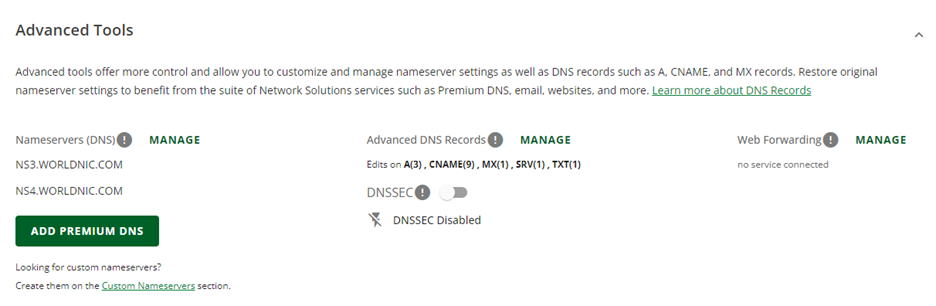
Image of Advanced Tools in Account Manager
  1. Click Manage next to Nameservers(DNS).
  2. Enter your nameservers, then click Save.
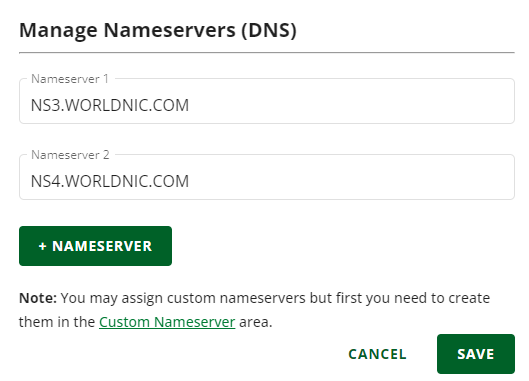
Image of Updating Nameservers

Note: Your nameservers may be different than the above image.

You have updated your nameservers.

Related Posts

WooCommerce Shopping Cart

eCommerce Migration to WooCommerce

Preparation Email Settings: Make sure your email is setup as POP/POP3 so that you don’t leave any email on the old server during migration. It looks like you are leaving allot of email on the server. Check to be sure your settings are as follows: POP3 Incoming Server...

read more...
WooCommerce Shopping Cart

Bulk Update WooCommerce Products

Export a product set, filter by Category or all products.  Export all columns or choose specific columns such as price.  Always include the ID column to update existing products! How to Update Products with a Partial CSV Prepare your CSV file. Your CSV only needs to...

read more...

0 Comments

Submit a Comment

Your email address will not be published. Required fields are marked *

This site uses Akismet to reduce spam. Learn how your comment data is processed.

Let’s Get Started

Ready To Make a Real Change? Let's Build this Thing Together!